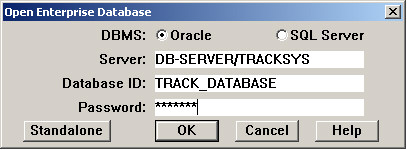
The dialog used to open an Enterprise database looks like this:
If you wish to open a Microsoft Access database instead, click Standalone .
Rangecam supports Oracle and Microsoft SQL Server database management systems. Use the radio buttons to select the DBMS that supports your Rangecam database.
For Server, enter the network name of the computer which hosts the database, followed by a slash, and the word "TRACKSYS". For Oracle, use a forward slash (/) as shown; for SQL Server, use a backslash (\).
For Database ID, enter the name that was assigned to the track database when it was created by the database administrator. (In Oracle this may be called the Schema, or Username). Then enter the security password associated with the database ID. Passwords are case-sensitive. They are not displayed.
You are not presented with a choice of options folders when you open an Enterprise database. An options folder is created automatically for you. The first time you open an Enterprise database, an options folder named after your Windows user ID is created, and all options files in the Options\Default folder are copied into it. Thereafter you may change your personal options without being affected by the choices made by other users of an Enterprise database running Rangecam on a shared server.
Most Enterprise databases contain more than one division and subdivision. When you open the database you will be prompted to select a division and subdivision for viewing.
To open a UP database, follow the general instructions for opening an Enterprise database.
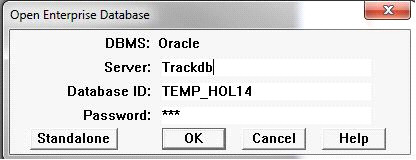
For Server, enter the network name of the computer which hosts the database, followed by a slash, and the word "trackdb." For Oracle, use a forward slash (/).
For Database ID, enter the name of the staging database TEMP_HOL14, which was assigned to the track database when it was created by the database administrator. Then enter the security password associated with the database ID. Passwords are case-sensitive. They are not displayed.
Once the Enterprise database is open, select cs_up_staging_datadump.dia to select the runs in the staging database that are available to be imported.
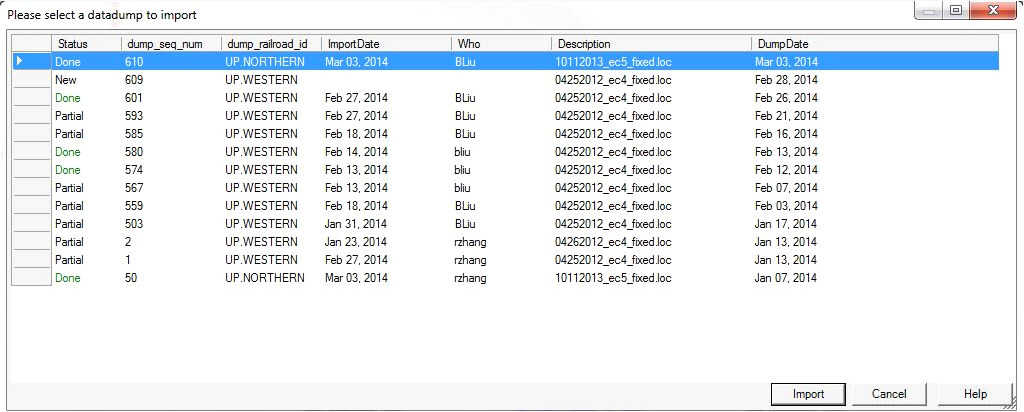
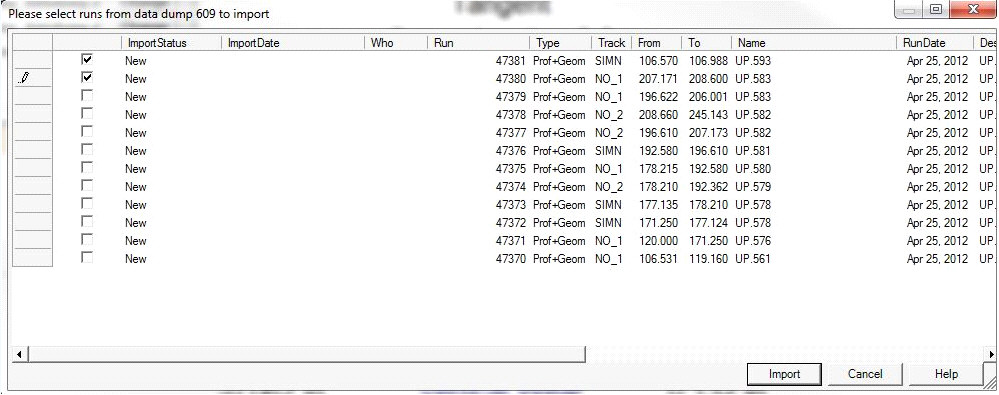
Select New and a new window will appear, showing the runs that are available to be imported.