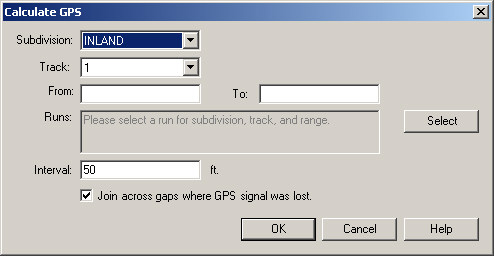
The Calculate GPS function analyses a run containing GPS data, applies quality filters, and calculates GPS coordinates of mileposts and locations between. The results are stored in the GPS database table, and are subsequently used for the map display, automatic run alignment and other reporting.
From the main menu, choose Run/Geometry/Calculate GPS... (If this menu pick is disabled, close any charts or other functions that use the threshold table.)
Click Select to choose a run for the subdivision and track code entered in this dialog. Location range is optional; if omitted, GPS will be calculated for the entire run.
You may choose to calculate GPS values for mileposts and intermediate locations at a fixed interval. For accuracy of GPS reporting and representation on the map, an interval no greater than 50 feet is recommended. The latitude and longitude of any track location is calculated by interpolating between the coordinates of the two closest locations that are recorded in the GPS table. On curved track, the interpolated GPS coordinates will lie on the chord that joins the two closest locations in the GPS table. For heavy-haul track, an interval of about 50 feet or 15 m will give very accurate results. For higher-curvature transit track, an interval of about 25 feet or 8 m is preferable.
During data collection, the GPS signal can be lost when the vehicle enters a tunnel, or for other reasons, although track test and mileage data are still collected. The checkbox, Join across gaps where GPS signal was lost will calculate GPS coordinates at the specified interval in a straight line across a gap between two valid GPS locations. This will enable the map to display track locations and test data within tunnels, as long as there are known GPS locations at both ends. Note that unless the track happens to be straight throughout the gap, the GPS locations calculated by "joining across" will not be accurate! The option is offered because an inaccurate map representation may be preferable to none at all. If you only want to see known GPS locations on the map, leave this box unchecked.
Rangecam uses the GPS coordinates calculated here with all track data from the selected subdivision, track and mileage range. If the calculation is done using a run with poor GPS quality, the apparent map position of all runs and other track data belonging to the territory may be affected adversely. Choose a run that is known to have good GPS. If you are not sure, review the territory on the map after calculating GPS. If the results are unsatisfactory, try recalculating GPS using a different run.
The Calculate GPS process will replace any GPS records already in the database for the subdivision, track and mileage range selected. Use the GPS Table Cleanup Tool (Database/GPS from the Profile View menu) if you need to delete GPS records for other territories.
This process may also be initiated from the Calculate All dialog.