Data collected by Holland TrackSTAR vehicles equipped with ORIAN rail profile measurement and Ensco geometry measurement systems may be imported.
A set of three source files with the extensions .RUN, .PRF, and .EVT are required for this import. Please verify that you have source files in the correct format before attempting this import.
To import Holland Ensco/ORIAN data, choose Run/Profile/Import/Holland Ensco/ORIAN from the Profile View menu.
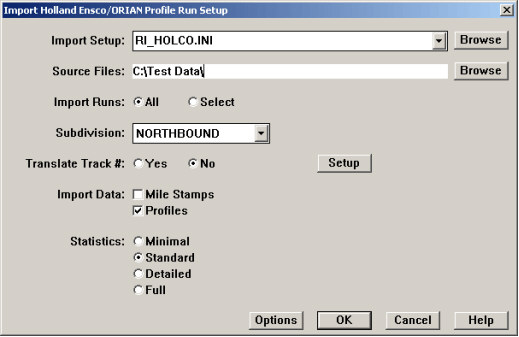
The Holland Ensco/ORIAN Import dialog
Use the Browse button to select the folder containing the .PRF source files, then choose All to import all of them or Select to select specific runs and mileage ranges.
You must specify the subdivision to which the run data belongs using the dropdown list. The subdivision record must have been previously recorded in the database, and the direction of increasing mileage must be correct. Refer to the section Subdivision in Database Maintenance on how to add a subdivision to the database.
Individual tracks are identified by integers in this data source. If you wish to translate the integer values into an alphanumeric track code, click Yes to Translate Track #. A dialog will open allowing you to specify the translation.
Check Mile Stamps to import mile stamps to update the Location database table that contains distances between mileposts. This should be done at least once for each territory. The Location table will always reflect the last run imported with mile stamps. If importing data from different data collection runs covering the same territory in different years, it is recommended that you import mile stamps for one year only - the one for which the mile stamps are most trusted.
When runs are processed, statistics are collected on successes and failures of rail modeling, rail recognition, and measurement calculations. The statistics are displayed in the Log Window and saved in the daily log file. They contain information that you can use to optimize run processing.
The setup dialog allows you to choose the level of statistical reporting. The choices, in increasing level of detail, are Minimal, Standard, Detailed, and Full. The Standard level is recommended if you are getting started. Interpreting the Import Run Statistics explains how to interpret and use the statistics.
The Options button opens the Modeling Options Dialog, allowing you to specify parameters affecting processing.
After you click OK, you will be prompted to select rail weights. Available rail types must have previously been imported to the database. For faster processing and maximum success in rail recognition, select only rail weights that are likely to be in the imported data.