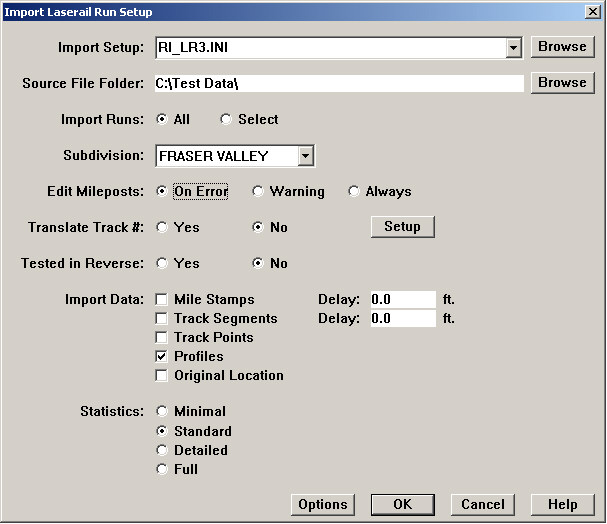
To import and process run data from Imagemap files, select Profile/Import/Laserail from the Run menu of the Profile View window. This dialog will appear:
Ensure that there is an INI file for the Laserail import in the CFG folder for your Rangecam installation. The INI file contains data-importation rules. The name of an INI file for importing Laserail data starts "RI_LR", for example, "RI_LR3.INI". If Rangecam cannot find the INI file, the import will not proceed.
The INI file RI_LR3.INI, containing default settings, is installed with the Rangecam Office System. Instead, you may use an alterative INI file containing data-importation rules customized to your requirements. A customized INI file is required if you wish to use the original rail type from the .DAT file for rail section identification. For more information on importing original rail types, see Modeling Options. If the customized INI file is in your configuration folder, you may select it using the Browse Button to the right of the Import Setup drop-down. If you require a customized import INI file, please contact Industrial Metrics.
In the Source File Folder field, enter the path to the folder containing the Laserail run data; or set the path by using the Browse button to select any .DAT file in the folder.
You may import all runs in the selected folder, or click Select to display run information and choose individual runs. You may also import partial runs by entering a specific mileage range.
You must specify the subdivision to which the run data belongs using the dropdown list. The subdivision record must have been previously recorded in the database, and the direction of increasing mileage must be correct. Refer to Subdivision under Database Maintenance on how to add a subdivision to the database.
The import allows you to view the mileposts that were recorded during data collection, and, if necessary, correct milepost errors that would otherwise prevent the data from being imported correctly.
Individual tracks are identified by integers in this data source. If you wish to translate the integer values into an alphanumeric track code, click Yes to Translate Track #. A dialog will open allowing you to specify the translation.
Check Mile Stamps to import mile stamps to update the Location database table that contains distances between mileposts. This should be done at least once for each territory. The Location table will always reflect the last run imported with mile stamps. If importing data from different data collection runs covering the same territory in different years, it is recommended that you import mile stamps for one year only - the one for which the mile stamps are most trusted.
The Delay field to the right of Mile Stamps is used to correct any systematic offset of milestamps associated with the profile data. An offset may occur if the field system operator records each milepost when the milepost is abreast point A on the data collection vehicle, and the measurement heads are located at a different point B on the vehicle, and the difference is not corrected by the data collection software. Each profiles location is increased by the distance specified in the Delay field, if the data collection vehicle faces the direction of increasing mileage for the subdivision. If the vehicle faces the decreasing-mileage direction, profile locations are decreased by the distance. If the offset is in the opposite direction, a negative value should be entered. The delay correction is an absolute distance, not scaled.
Check Track Segments if you wish to import curve boundaries stored with the Laserail data. Caution: these will overwrite any track segments already in the database for the mileage range of the run. Since Laserail data does not include degree of curvature, all imported curves are labeled as 1 degree left or right. The Delay field to the right of Track Segments, used only if track segments are being imported, specifies the distance that curve boundaries 'lag' in the data, as a result of geometry systems' requirement to integrate curvature information over a length of track. This delay is different for different data collection vehicles; it may vary from 0 to 200 feet or more.
Check Track Points to import any track 'events' such as switches, crossings, etc. that may be stored in the Laserail data. Unlike track segments, imported track points are always added to those already in the database. Take care not to import the track points from the same territory twice, as that may create redundant information, which you will have to clean up later.
Check Profiles to import rail profile data.
Check Original Location to save the original location of each profile, expressed as milepost and foot-offset, in the database. Rangecam maintains profile locations as decimal values representing scaled distance units. (For an explanation of location scaling, see Location under Database). Checking Original Location uses additional database storage (8 bytes or more per profile), and has no effect on reports and calculations. It is included as an option to meet requirements of customers who wish to cross-reference profiles between Rangecam databases and external databases in which profile location is represented by milepost and foot.
When runs are processed, statistics are collected on successes and failures of rail modeling, rail recognition, and measurement calculations. The statistics are displayed in the Log Window and saved in the daily log file. They contain information that you can use to optimize run processing.
The setup dialog allows you to choose the level of statistical reporting. The choices, in increasing level of detail, are Minimal, Standard, Detailed, and Full. The Standard level is recommended if you are getting started. Interpreting the Import Run Statistics explains how to interpret and use the statistics.
The Options button opens the Modeling Options Dialog, allowing you to specify parameters affecting processing.
After you click OK, you will be prompted to select rail weights.
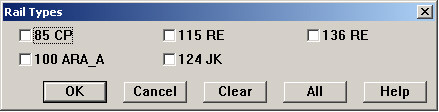
Available rail types must have previously been imported to the database. For faster processing and maximum success in rail recognition, select only rail weights that are likely to be in the imported data.