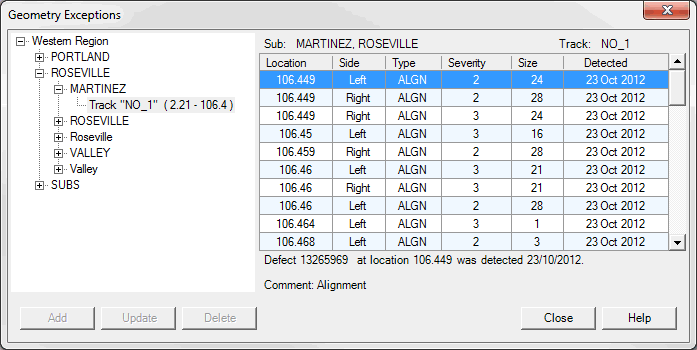
Similar but separate dialogs are used to show geometry, rail, GRMS and other types of exceptions or defects. This discussion uses the Geometry Defects dialog as an example of all four, noting the minor differences between them.
Defect Viewer
The Geometry Exceptions Dialog shows all defects in the data grid for entire selected track. The track can be selected from the control on the left side of the dialog. Selecting a new track immediately replaces the defect list with a new one. A description of the track is shown above data grid. The given example shows that we selected track NO_1 belonging to two subdivisions, Martinez and Roseville.
The defect list is sorted by track location.
Any defect within the grid can be selected by clicking mouse on any row, or by using up/down key from the keyboard to navigate through the list. Detailed information about the selected defect is displayed below grid.
A defect has a point location, specified by subdivision, track and mileage. Track side is also normally specified for rail defects, although not for geometry defects. The field is empty if track side is unknown. If the side is empty for a rail defect, the defect will be displayed in charts for both sides of the track.
Track Analyst users are not allowed to modify defects. That is why buttons Add, Update and Delete are disabled.