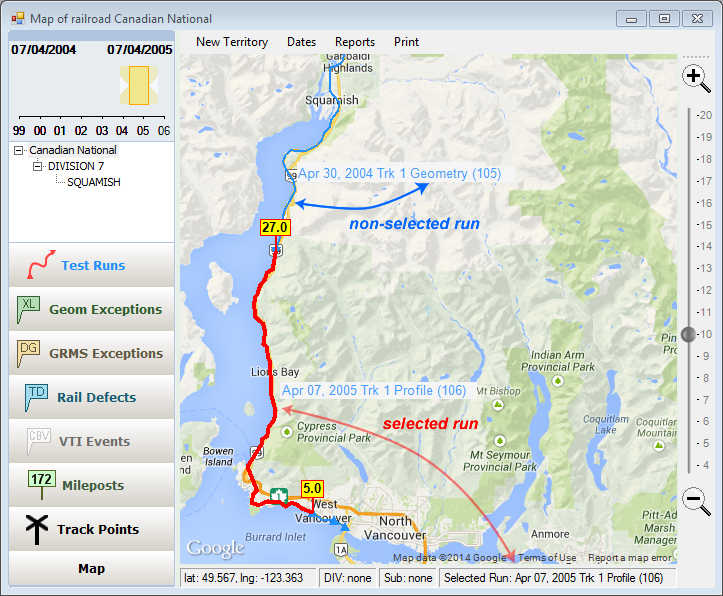
Click Show on the Test Runs sidebar button to display runs for the selected territory and date range on the map. A window will notify the user if a selected run cannot be displayed on the map because it does not include GPS data. This window provides the option to access the data through the two-up profile window. Runs that appear on the map are initially shown in blue, with their start and end points represented as triangles. A label identifying each run appears near its geographic center point.
Presentation of non-selected (blue) and selected run (red) on the map. Description of selected run also is shown in status bar.
Some Rangecam reports require a test run to be selected. Using the map window, you can select a run either by clicking on its image and selecting the run from the drop-down list that appears, or by using the Select menu item on the Test Runs sidebar button. The latter method opens the Run Selection Dialog, allowing selection of runs currently displayed on the map. Runs are associated with tracks. Territories shown in gray scale in Select Territory Dialog do not have tracks available for display on the map. Corresponding runs also cannot be shown on the map. Runs without GPS data can be viewed through the two-up profile window. When a run on the map is selected, the line representing it thickens and turns bright red with location marks shown at the ends.
For example, a rail head slope query report requires a geometry run. If a profile or geometry+profile run is currently selected on the map, and you choose a rail head slope query from the map Reports menu, the selected run will be used by the query. To launch the query for a different run, select the run first.