
If you wish to align a geometry or combined run to another, and both runs contain GPS coordinates, choose Shift/Align on GPS from the Track Condition Chart menu to open this dialog:
On the first line, select the geometry or combined run that you want to align. This defaults to the currently selected run. On the second line, select the run to which you wish to align it on GPS. This defaults to the oldest of the suitable comparison runs.
The OK button calculates a set of shifted anchors, which are displayed on the charts.
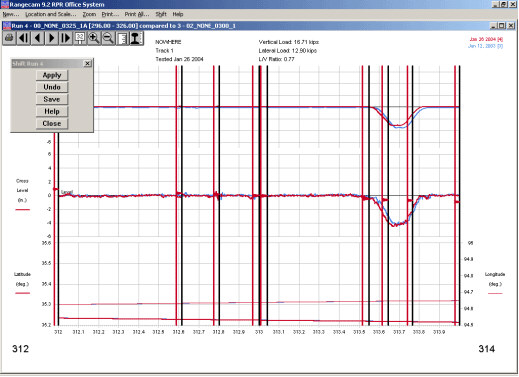
Shift calculated by GPS alignment
From this point on, the anchors are used exactly as if they had been created manually. The Apply button applies the alignment, and the charts are redrawn. Then click Save to make the alignment permanent, or Undo to undo it and make changes. Details may be found in the previous two sections.
GPS data is not collected and stored with profile runs. However, if you have a profile run that is aligned to a geometry run, as a result of being collected by the same vehicle at the same time using a common odometer, you can use the GPS alignment feature for the profile data as well by following these steps:
If the alignment of the profile run to the geometry run collected at the same time is not perfect, correct that first by shifting manually.
Join the profile run to the geometry run.
Select the combined run, and align it to another geometry or combined run using GPS.