This report calculates the average wear of rail on each side of each curve and tangent section covered by a data collection run.
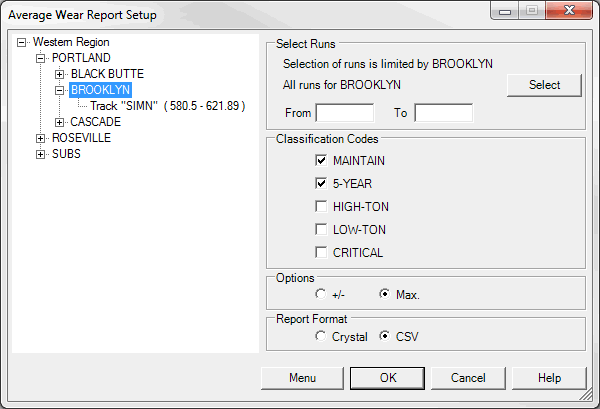
To generate the Average Wear Report, select Reports/Average Wear... from the Profile View menu. The following dialog will appear:
Average Wear Report Setup Dialog
The next step is to choose a data collection run from Select Runs group box. Click Select button to select a run. The left panel, which shows the territory hierarchy, helps the user to filter the number of runs if there are many in the database. By selecting a specific territory, the user limits the list of visible runs to show only the runs that cross the selected territory. In the given example selection of runs is limited by subdivision Brooklyn. The mileage range defaults to run boundary, but a sub-range range may be specified instead.
The report shows average wear values and the rail type for each side. Additionally, it shows the length and percentage of the selected rail classification categories. To select the classification categories to be shown check corresponding boxes in groupbox Classification Codes.
This report can be generated in Crystal or CSV format. The CSV format includes complete set of data, including average and standard deviation or maximum wear values. The Crystal Report format includes only averages.
The rail inventory calculation is required by this report.
In addition to average wear values, you have the option of including either measurement variation or the maximum measurement within the segment. Choose +/- for measurement variation (expressed as standard deviation x 3) or Max. for the maximum wear measurement.
Click Menu if you wish to save the report template to the map Reports menu.
Click OK to run the report. When it is ready, the Report Complete dialog allows you to open it.
In the Crystal format, the report looks like this:
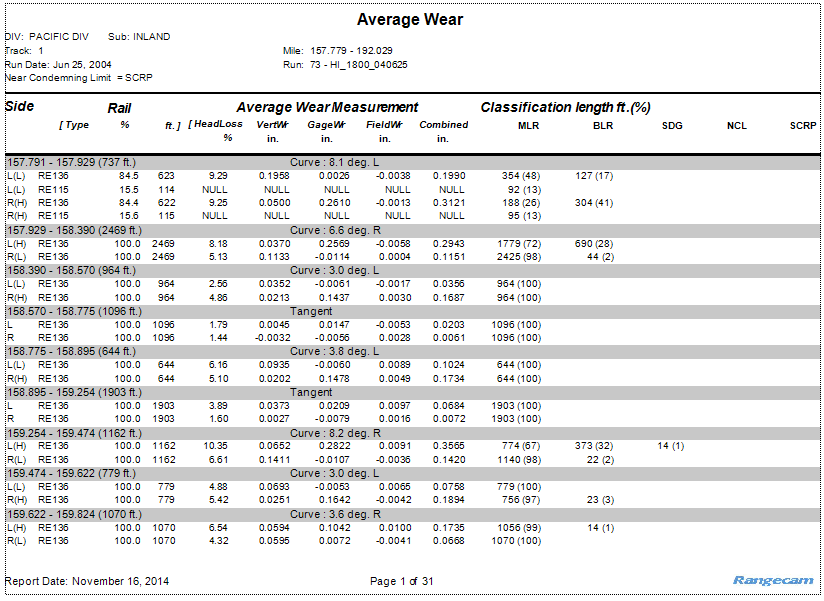
Average Wear Report Example
On the left, the report header contains the Subdivision, the run date and the selected classification range. The central portion of header identifies the mileage range and run number. The report was written is shown at the bottom left. The page number is centered at the bottom.
The report body contains a section for each curve and tangent segment of track within the mileage range. The start and end locations of the segment are given, followed by the description. Curve segments are described by the degree of curvature (expressed in decimal degrees), and the direction of curvature. (A right-hand curve, labeled "R", curves to the right when facing the direction of increasing mileage for the subdivision.)
After the segment header, at least two lines follow for each side of the track included in the report, and for each rail type (weight) found on that side.
The first detail line identifies the side by compass letter, and the rail type. These are followed by Average Measurements for percent head loss, vertical wear, gauge-face wear, field-face wear, and combined wear. Following that are linear feet and percentage of the segment that have the classification codes selected in the request dialog. (This latter information is drawn from the Rail Inventory calculation.) The example shows that 127 ft., or 17%, of the 8.1-degree curve at MP 157.791 on the left (L) side is classified as BLR.
If the Standard Deviation (the +/-) option is chosen on CSV report (not shown), each number following the Average Measurement is 3 times the standard deviation of the corresponding measurement on the first line. Assuming a normal distribution, 99.7% of the measurements sampled would fall within ± 3 standard deviations of the average. Note: Measurements sampled within a curve are not expected to follow a normal "bell-curve" distribution.