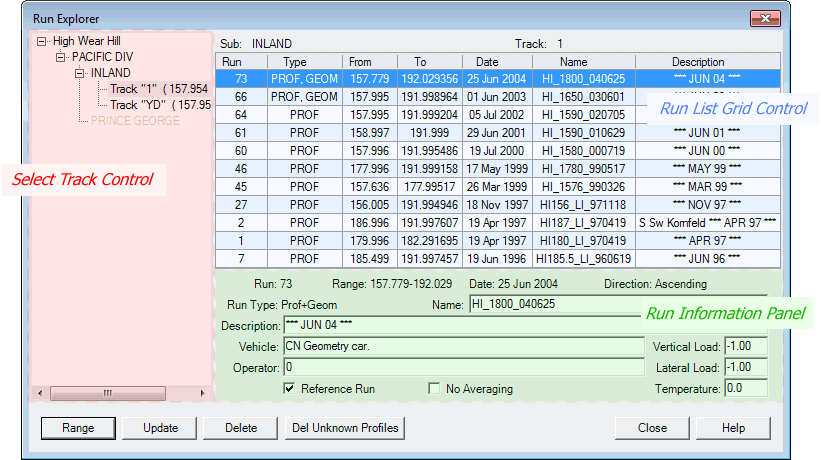
Run Explorer is used to look up the Run table. User selects track of interest in left Select Track Control. Run Explorer automatically shows all available runs for selected track in right Run List Grid Control. Basic run information displays in this grid. When run is selected the detail run information is shown below grid in Run Information Panel. It includes description of collected data vehicle, operator who collected data, ambient temperature and so on.
The Run Explorer Dialog allows to look up the Run table
The Run table maintenance dialog is unique in several respects.
In the Office System, a run record is added to the database when you import a run from field data (see Processing and Editing Functions) or from another database. There is no Add button.
Also, many fields are maintained by the system, and cannot be manually updated. Run direction must be entered correctly during field data collection. Subdivision may be changed, but only if the direction of increasing mileage is the same. The run number, its primary identifier, is assigned by the system. Run date is the system date in the field system when the data was collected.
You may freely update the run name, description, and the other text fields clicking the button Update.
The range of mileage locations included in the run is system-maintained. However, it may be manually refreshed by clicking the Range button. This causes the range to be recalculated from the locations of the profile and/or geometry records in the run. It may be useful if you have deleted data from either end of the run during editing. If you join or split runs (see sections Joining Runs and Splitting Runs) it is not necessary to update the range manually.
It is possible to change the subdivision to another subdivision with the same direction of increasing mileage. The track code can also be changed. If subdivision or track is updated, and the database contains exceptions, track segments or track points associated with the run, those related records will also be updated with the new subdivision or track.
The Delete button deletes not only the run header record, but the individual profiles in the run, and all other records that refer to the run, including entries in a grinding plan! You should not delete a run unless you are sure that its profiles are not referenced in a grinding plan you wish to keep. If you wish to recover disk space after deleting runs, you may compact the database (see Database Management).
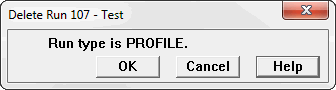
If button Delete clicked the user is asked about confirmation.
The Del Unknown Profiles delete all unknown profiles from selected run.
Buttons Range, Update, Delete, Del Unknown Profiles might be blocked if the dialog is used as viewer. It could happen if database is read-only or product is configured to protect data from modification.
The No Averaging checkbox is used to exclude specific runs from the calculation of average values used in wear trend calculations. You may use it if you have low confidence in the accuracy of a particular data collection run, but you do not want to delete it from the database. If you check No Averaging when averages have already been calculated, you will be warned that averages for the run will be deleted if you proceed with the update.
The Reference Run checkbox may be used to select or deselect this run as a reference run for purposes of rail section identification and run alignment.