Some runs need to be processed after import. Such processing includes modification of rail types, alignment, removal of incorrect data or other types of changes.
New imported runs may or may not be marked as "processed." A data processing operator has the opportunity to mark a run as processed or unprocessed. In some import routines, new imported runs may be shown as unprocessed.
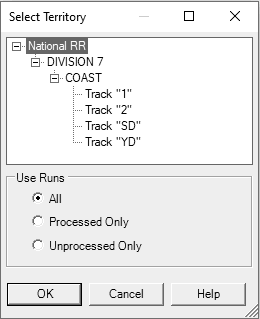
A database administrator can configure a database to turn on/off the feature "Use Processed Runs Only." If this feature is turned off a user has the opportunity to select and work with all runs or only with processed when opening a database. Unprocessed runs can be excluded from consideration. When the database administrator configures a database to "Use Processed Runs Only," unprocessed runs will not appear in list of runs. Queries will ignore these runs. The only exception to this rule is the Run Explorer (see below), which shows all runs in database but shows them in different colors.
The "Use Processed Runs Only" feature is off. The application will work with all runs in this case.
A databse adminstrator can change the status of an "unprocessed" run to processed."
Open Run Explorer from menu Database->Run... .
In Run Explorer unprocessed runs are shown in red.
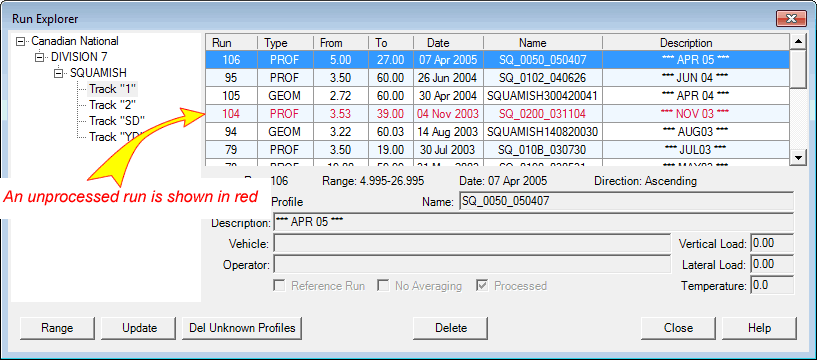
Red color indicates unprocessed runs in the list
When an unprocessed run is selected, the Processed checkbox is unchecked.
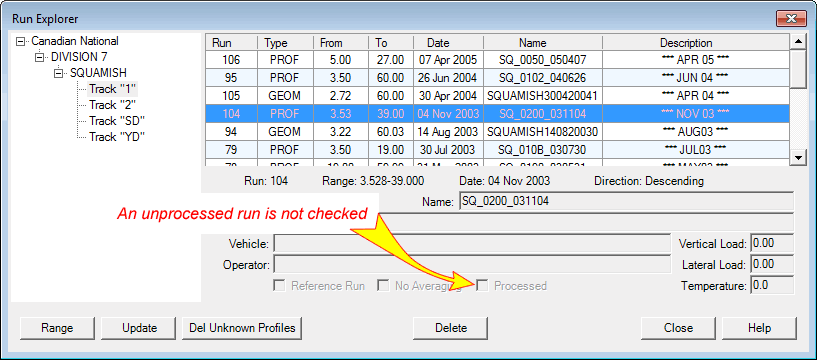
A check box indicates if run is processed.
To modify the status of a run, select it using the mouse or keyboard and click the Update button.
In the opened dialog Run Update Form check the Processed box and click OK. The record in database will be updated.
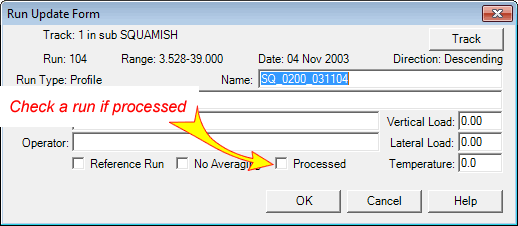
Run Update Form
The run will change color in the Run Explorer according its new processed status.