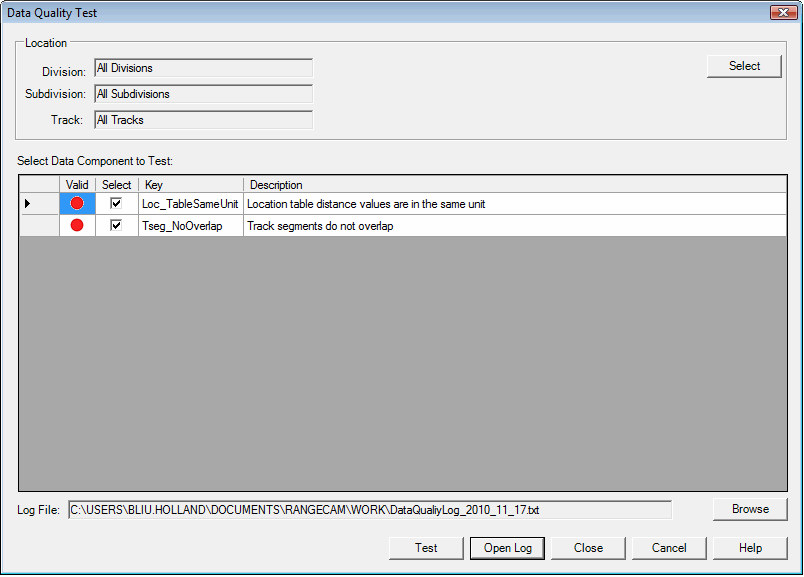
A Data Quality Test has been added to Office to verify that 1) the location table distance values are in the same unit; 2) track segments do not overlap. These Quality tests are accessed from the Tools/Data Quality Test menu on the two-up profile window.
The Division, Subdivision and Track can be selected, or the test can be run for "all" (the default setting). Green indicates that there are no problems. Orange provides a warning that, for example, average wear has not been calculated for all profile runs - critical information when generating wear trend charts or performing rail replacement planning. Red indicates that problems have been identified in the Location and/or Segment tables. Click the Open Log button to open the log report.
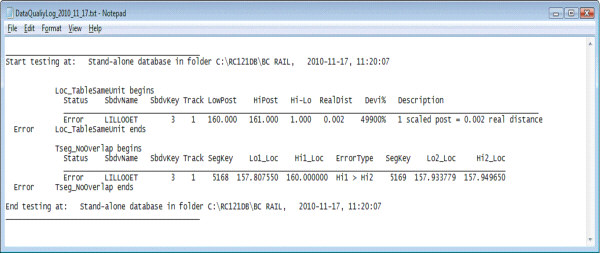
The log report, in this case, indicates that there are two problems: 1) an error in the Location table between mileposts 160 and 161, indicating that the real distance between the mile posts is 0.002 miles; 2) an error in the TSEG table between Mileposts 157.8 and 160 in which two track segments overlap.
Errors in the Location Table can be corrected, if the user knows the correct information, by modifying the distance in the Track Reference Locations (Mileposts) windows, which is accessed through the Database / Location / Track Location menus. Errors in the Track Segment table can be corrected, if the user knows the correct information, by modifying the track segment lengths through the Track Segments window, which is accessed through the Database / Track Segments menus.
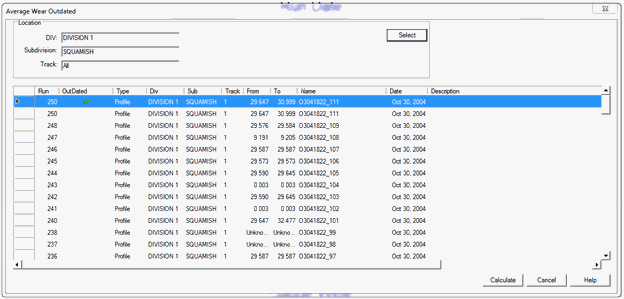
An Average Wear Outdated window has been added to the Tools drop down menu to identify runs for which average wear calculations have not been done or are out of date. Runs may be selected by Division, Subdivision and Track by clicking the Select button. Runs that appear with a check mark shown in the “Outdated” column are out of date and require recalculation due to a change the segment type, profile type or deleted data, etc. Runs without a check mark appearing in the “Outdated” column were never calculated and, therefore, require calculation. Runs can be selected individually or in groups by using the shift key and right mouse button. After selecting the runs to be calculated, click the Calculate button on the lower right window to calculate average wear for the selected runs.