To make it easier to support multiple clients with different requirements, you may create multiple options folders. Options stored in each folder are independent of the others.
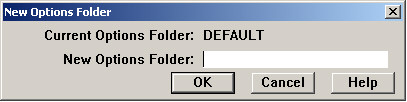
Use Options/New Options Folder on the Profile View menu to open the dialog.
New Options Folder dialog
Enter a name for a new options folder, and click OK. The folder will be created and all files from the current options folder will be copied into it. The new folder becomes the current folder, and will remain so until you change it.
Enter only the folder name, not the path. The new folder will be created under Rangecam\RC120\Options within the Common Application Data Folder on your computer. The path to the Options folder on a Windows XP system is usually: All Users\Application Data\Rangecam\RC120\Options.
If you enter the name of a folder that already exists, you will be asked whether you wish to overwrite its contents.
After you have created a second options folder, the Open Database dialog will give you the opportunity to select it as the current folder whenever you open a database.
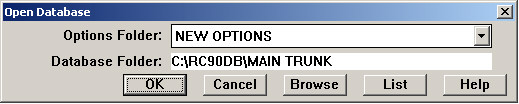
Open Database dialog with Options Folder list