Rangecam can export profile measurement data in a file format that can be read by a spreadsheet or other applications.
On the Profile View window the Reports menu, choose Export Run... This brings up a dialog that allows you to specify data for export.
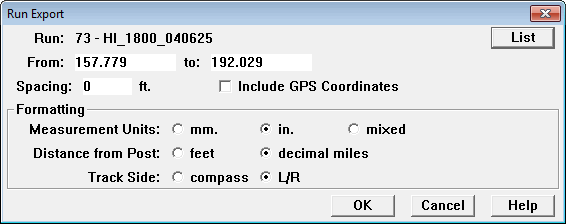
Run Export Dialog
You specify a profile run and, optionally, a mileage range. You may also thin the data if desired by entering a value greater than zero in the Spacing field. This value is the minimum distance between successive exported profiles on the same side. Data thinning may be of value if exporting to spreadsheet software that can only handle a limited number of rows.
If the database contains GPS data from geometry runs, you can optionally export GPS coordinates of each rail profile. However, this will slow down the export process by many times.
Available formatting options are:
See the appendix for details on the file layout and contents.
You may also export the contents of Rangecam database tables directly from Microsoft Access. From the Access File menu, choose Save As/Export and follow the prompts. Be careful not to alter the contents of your database, or overwrite the database files!