Import of UP tie data in Rangecam
IM, Sep 20, 2011
1. Introduction
The TieImport.UP.exe program is a utility to import data collected during a manual "walking" tie inspection into Rangecam database version 12.
The program was designed based on sample file provided by UP. There is no any document specified import protocol. That is why the program requires that all files will follow the description provided below.
Specifically each file is an Excel file with extension .xlsx (version Excel 2007 and later). File contains headers, data summary and some more information.
Tie data are clustered by mile quarters. Every mile quarter has it is own header
Mile quarter header takes 2 first lines and has a form:
|
|
Segment: 5883-0 Track Type: SIMN Mile Start: 97.000 Mile End:
98.000 |
||
|
TIE_NBR |
TO_BE_REPLACED |
ORIGINAL_RATING |
FEET_SKIPPED |
First line (metadata) describes data, second data schema.
Tokens like "Quarter
Tokens like "Segment: 5883-0 Track Type: SIMN Mile Start: 97.000 Mile End: 98.000" are ignored.
Each cluster is following by summary, sometimes comments. All this information is ignored.
Data.
Data itself are placed in four columns. Information from second column (TO_BE_REPLACED) is ignored. Fourth column sometimes has comments and currently is ignored.
|
15 |
No |
G |
|
16 |
No |
G |
|
17 |
Yes |
B |
|
18 |
No |
G |
|
19 |
No |
G |
|
20 |
Yes |
F |
The program converts ORIGINAL_RATING classification according to the table below
Table 1. Conversion of UP Tie Condition to Rangecam Tie Score
|
UP |
Rangecam |
|
B (bad, black) |
4 |
|
F (fair, defective, red) |
3 |
|
G (good) |
2 |
|
E (excellent) |
1 |
|
All other |
0 (unrecognized) |
Program reads data row by row and closes current mile quarter cluster as soon as meet cell in first row that contains non numeric value.
2. Installation
The program has only one file TieImport.BNSF.exe. No special procedures are required to install it.
The program uses .NET 3.5 framework that should be installed on the computer.
User should have internet connection to get online help.
To open Excel 2007 files with extention xlsx the Microsoft driver has to be installed.
3. Usage
Start the program. To start the program double click the program file or use any other way to start a program in Windows (create icon, use command string ...).
A window shown in Figure 1 appears.
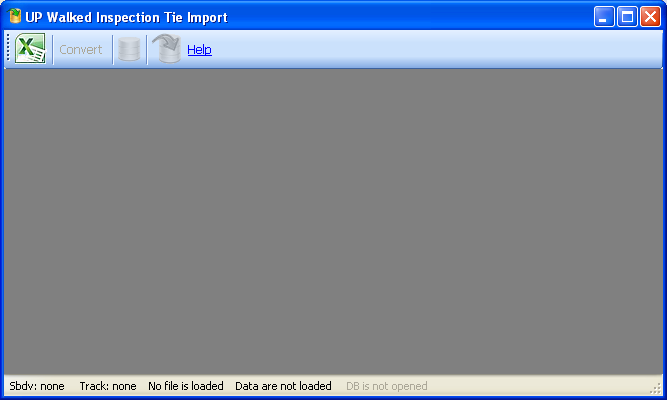
Figure 1. An initial view of the program
The program has several sequential steps:
- Loading
data (button "Excel"
 )
) - Conversion of data: location, tie rate or classification (button "Convert")
- Opening
Rangecam DB (button
 )
) - Import
data (button
 )
)
The buttons are available only if the operation is allowed. For example, data cannot be imported if a DB is not opened.
Load Excel data. Click the first button "Excel" or combination of hotkeys Ctrl+O to select file. The program allows the user to choose just one file. The file extension can be only xlsx.
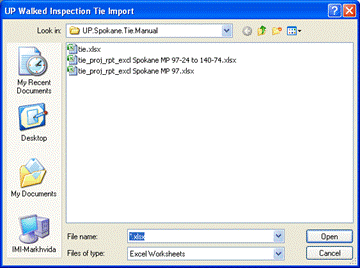
Figure 2. Select folder and file
Select the folder where the tie data are placed and select the file. Click the "Open" button. Be patient: it takes up to 5-8 second to load 100 000 records.
If you get message
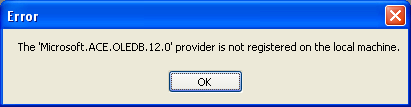
it means that Microsodt Access Database Engine 2010 has to be installed. Go to http://www.microsoft.com/download/en/details.aspx?id=13255 for more details.
If the data was loaded successfully a table appears inside the window. The next button "Convert" becomes available.
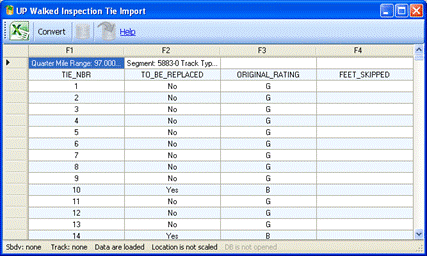
Figure MsoNormal>The user can view the raw data, scroll rows, or even modify data if necessary.
Important! Do not sort data. If data are sorted occasionally or for purpose (e.g. to check range of ORIGINAL_RATING or location) do not continue import. Click "Excel" button one more time and reload data again. The program has limited ability to validate data. This is why the user is responsible for all corrections. We do not recommend modifying data unless you are sure that a correction is really needed.
Convert. Hit the button "Convert" to convert the data to a format that Rangecam can read.
Excel file does not have full set of metadata that would allow to do import automatically. That is why program asks operator to input Subdivision and Track that are critical for Rangecam DB.
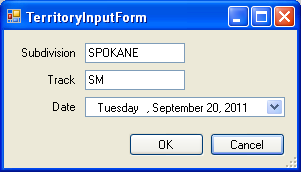
Date is optional. This date is considered as run date (date when data are collected). Default program set current Date. Date control is standard Windows control, but many users do not suspect how many options it provides to input month, day and year. Click on Date Control and use arrow buttons (down, up, left, right) to explore it.
There are two types of conversion. First, location is modified to spread ties evenly within each mile quarter. Second, ORIGINAL_RATING is converted from character code to numeric tie_score according to Table 1. Conversion has to be done only once. This is why the button "Convert" is disabled when the operation is completed. Upon completion, the next button is enabled, as shown in Figure 4.
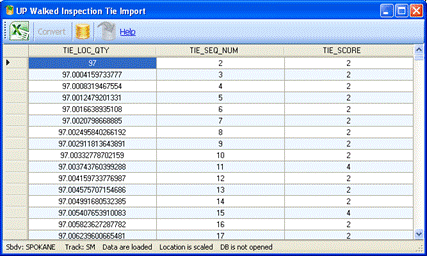
Figure 4. View after Location and tie_score were converted
Data can be reviewed again. If data was sorted for any reason then sort them back by TIE_LOC_QTY or TIE_SEQ_NUM in ascending order. Despite data are allowed to be edited in View in reality they are not modified internally.
Open DB. Select a Rangecam DB into which the data is to be imported. The program validates it if a subdivision (see Sbdv in the left bottom corner) with the same name exists in the DB. If not, the user will be notified to create this subdivision (this can be done in Rangecam) or open another DB where this subdivision exists. If the operation succeeds, the last button is enabled.
Import data. Click the last button to import data into the db. A progress bar at the bottom status panel indicates the progress of the import. It is not recommended to interrupt the process during db operation. It is not recommended to use this DB by Rangecam or another program during import because simultaneous modification of the DB from two or more client programs can corrupt data. Viewing the data is okay. The user can have Rangecam opened along with the import routine to view the data. When the import is finished, a message box informs the user of the results.
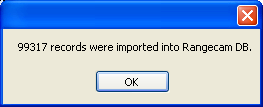
Perform the next import or close the window by hitting the red cross-button (Windows XP) in the right top corner of the window.