
The user also must select Rangecam MS Access DB version 12 where to import data by clicking menu item Target Database
Standard folder selection dialog allows to select the folder where DB is located. DB folder appears in the application Title
As soon as the application connected to Rangecam DB, the Territory Select Control will be loaded.
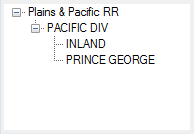
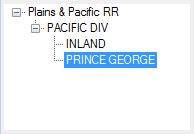
Select Subdivision "PRINCE GEORGE" explicitly by right mouse click
User must expand territory tree and explicitly select subdivision with which imported run(s) will be associated in Rangecam DB. Track code system will automatically transfer from ARIES DB.
The application also loads the list of rail types available in Rangecam DB. The user must check those types that will be used to model rail.

Only Rail Types RE115 and RE136 are used by Rangecam Rail Recognition
To select Modelling options used by Rangecam Rail Recognition please use the button Browse. File with modelling options should have extension *.mdl and should be generated for Rangecam version 12.

If user want to visualize the whole path to the modelling file it is enough to hover mouse over the file name and the full path will display in the tip as shown above.
When everything is ready the user can cross fingers, and click button Import. If something is missed the message pops up informing user what selection missed. If everything is OK, the import process starts and progress is showing in a new progress window. This window also has the button Cancel that stops import.