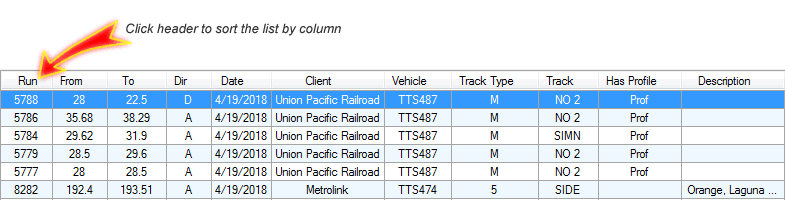
The next step is selection of runs to import. On the load, the program sorts list of runs by date from the latest to the earliest. The whole list can reach tens thousands runs. User have two options to narrow the choice and identify runs of interest
The user has multiple options to sort the list. Just click the header of virtually any column and the list will be sorted in ascending order by this column. Click second time and the order will be reversed to descending.
The program allows the user to narrow the list of runs providing three filters:
Filters work independently. In other words, only one filter can be applied to the whole run list at a time.
Date Range Filter is represented by the control shown below.
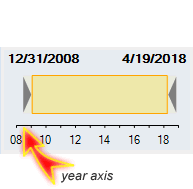
Year axis shows range of date in the whole list of runs. In the example above runs were collected from 08 (2008) to 18 (2018).
Dates in the top left and right corner shows low and high date that filter applies. In this example low date is December 31, 2008 and high date is April 19, 2018. To modify them double click the control and the new form will be opened to modify date range.
Vehicle filter represents the list of all vehicles collected data. Click one of them and you will see only runs collected by the selected vehicle.
Client Filter represents the list of clients for which service was provided. Click one of them and you will see only data collected for the given client.
Selection of runs the user is doing by mouse. Click any run in the grid view and the whole line will be selected.
As soon as run was selected, the user can preview it clicking Run Preview item in the menu. The program will automatically open ARIES web site in standalone browser window.
Multiple selection is allowed. The user can use standard windows key/mouse combinations, like Ctrl + right mouse Click, Shift + mouse Click, Shift + arrow down key, Shift + arrow up key, Ctrl + A, etc.
In case if multiple runs are selected the Run Preview is applied to the last selected run.
As soon as multiple runs are selected the user may import all of them at once.
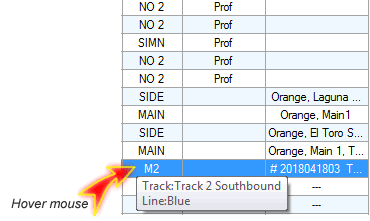
Sometimes information about track shown in the grid is insufficient and user needs full description of the territory which track belongs to. This information is easily available. It is enough to hover mouse over the track and additional information appears in the tip. Depending on connection speed it may take from instant to up to 2 sec.
The user must select type of data that will be transferred from source database to the target db. It is enough to check corresponding boxes

Not all runs have profile data. It is easy to check in column "Has Profile". For such runs check box "Profiles" is ignored.