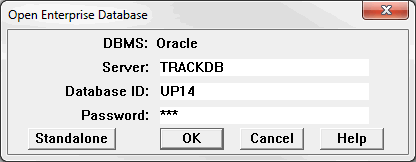
The dialog used to open an Enterprise database looks like this:
If you wish to open a Microsoft Access database instead, click Standalone .
Rangecam supports Oracle database management system as an Enterprise DB.
For Server, enter the network name of the computer which hosts the database, followed by a slash, and the name of Oracle service ("TRACKDB" in the example above). For Oracle, use a forward slash (/). Only Oracle service name can be used if everything is set properly. In this case Oracle mechanism (tnsnames.ora) will care how to find computer hosting DB.
For Database ID, enter the name that was assigned to the track database when it was created by the database administrator. (In Oracle this may be called the Schema, or Username). Then enter the security password associated with the database ID. Passwords are case-sensitive. They are not displayed.
You are not presented with a choice of options folders when you open an Enterprise database. An options folder is created automatically for you. The first time you open an Enterprise database, an options folder named after your Windows user ID is created, and all options files in the Options\Default folder are copied into it. Thereafter you may change your personal options without being affected by the choices made by other users of an Enterprise database running Rangecam on a shared server.
If database has several railroads user is prompted to select one of them to continue.
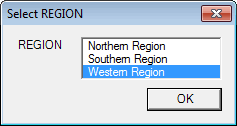
UP Enterprise database contains several regions. Each of them is treated as railroad.
If only one railroad exist in DB this dialog is skipped.
Most Enterprise databases contain more than one division and subdivision. When you open the database you will be prompted to select a division and subdivision for viewing.