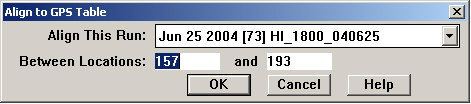
A run that contains GPS data may also be aligned to the GPS database table. Choose Shift/Align to GPS Table from the Track Condition Chart menu to open this dialog:
Select the geometry or combined run that you want to align. This defaults to the currently selected run. Normally you will align the entire run, which is covered by the default location range. If a smaller range is selected, a uniform shift may be applied to outlying portions of the run; if so, a warning message will be displayed.
The OK button calculates a set of shifted anchors, which are displayed on the charts.
From this point on, the anchors are used exactly as if they had been created manually. The Apply button applies the alignment, and the charts are redrawn. Then click Save to make the alignment permanent, or Undo to undo it and make changes. For details see the Visual Alignment Interface section.
For information on how to populate the GPS database table, see the Calculate Best GPS topic.