Rangecam supports three main classes of exceptions: geometry, GRMS and rail. Each class has its own button on the map sidebar, which is enabled if the database contains exception types belonging to that class. Like other sidebar buttons, these can be used to display, hide, or bring to top exceptions of the three classes. But for defects and exceptions, a finer level of control over the map display is also available. Each button has a Filter menu pick, which can be used to hide or show exceptions on the basis of severity level, date range, and specific defect type. For example, you can display only Tight Gauge exceptions, or Transverse Defects of severity 3 detected in the past three years. Filters provide a great deal of flexibility in viewing exception data on the map.
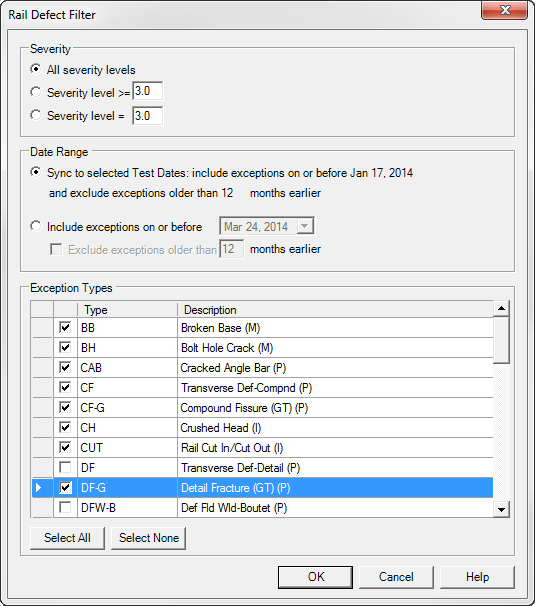
Rail Defect Filter Dialog
The exception filter dialog is subdivided into sections for severity, date range, and defect type.
Use the Severity Level >= choice to specify all exceptions with a severity level equal to or worse than the specified value, or Severity Level = to specify an exact severity level.
The Sync to Selected Test Dates option (the default) applies the date filter setting for the map as a whole to the exception class. Alternatively, you can use the Include Exceptions on or before option to specify an independent date range.
Use the Exception Types group to select specific types of exceptions to be shown on the map. This can be used to show how some kinds of exceptions are clustered geographically, either by maintenance areas such as subdivisions, or by physical topographic features such as high curvature or gradient.
When zoomed out, exceptions appear as dots on the map. When zoomed in, the exception type is displayed as a label. Additional information can be viewed by selecting an exception.